
How to add PDF comments

PDF comments are by far the easiest way to tell us what you want changed in your book. Rather than sending an email saying "page 46, near the top, third line down...", you just stick a comment right next to the thing you're talking about. Much easier for you. Considerably less chance of us changing the wrong thing.
And we use comments all the time ourselves too. We might add a little explanation for one aspect of the design. We might include a note to ask you a question. Maybe we'll add a little warning flag on something we think you should look at. So when we return your PDF proof, do just keep in mind there may be a number of comments sitting there waiting for you.
You'll need Adobe Acrobat Reader
To see or add comments, open your PDF in Adobe Acrobat Reader. Adobe invented the PDF format. Reader is always the most reliable way to open a PDF exactly as it was meant to look. Sure, there are plenty of browsers and other PDF viewers that will open a PDF, but they don't handle the display and comments in the same way. So for a proof, where we're worrying about exact layout, fonts and positioning, it's so much better if we're all looking at it through Adobe.
Acrobat Reader is free, and there's a good chance you already have it installed. If not, you can download it from the Adobe website.
Adobe does like to move things around every now and then. So screens can look a touch different depending on whether you're using a Mac or PC. In all cases though, it's the Comment tool you're after, normally shown as a little speech bubble. It may be down one side of the window, in a panel on the right or somewhere along the top.
Reading comments we've left for you
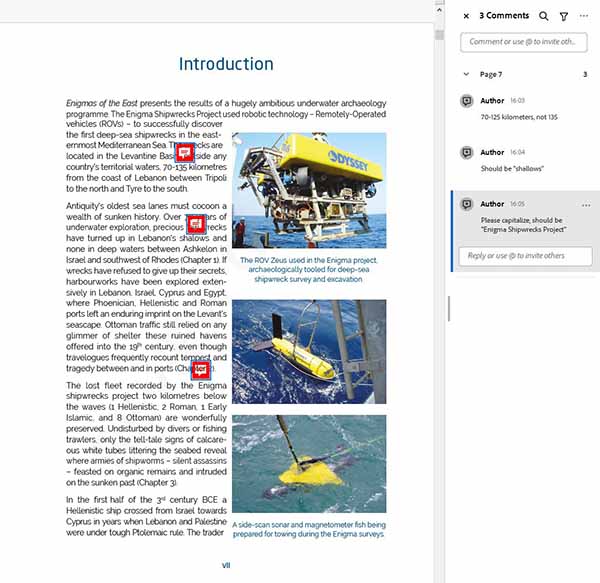
Once you've opened the Comment tool, you'll see a list of all the comments already sitting on the PDF. Click one and Acrobat goes straight to the right spot on the page. Thankfully, you don't need to hunt around looking for little comment icons.
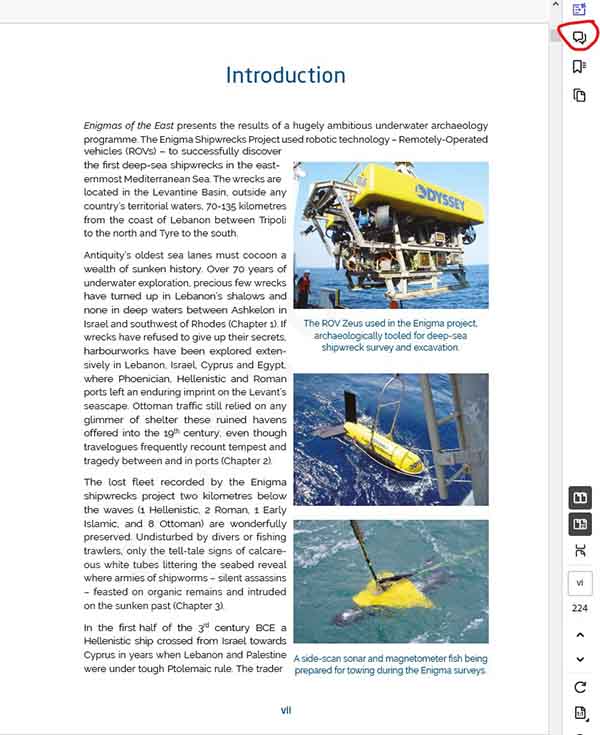
Then just work your way down the list. Click each note, read it in the context of where it's been placed on the page. Then move to the next one. That way you know you've seen everything we've left for you.
Adding your own comments
Adding your own comments is just as easy. With the Comment tool open, choose the option to add a comment or sticky note. Then simply click next to the thing you want changed. Type your message into the box. And that's really all there is to it.
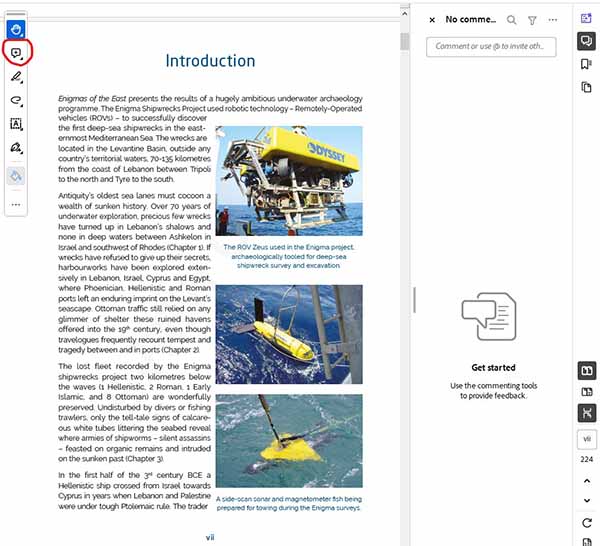
You don't need to write a huge explanation. Something like "Please make this heading smaller" or "Can we swap this image?" is fine. The location of the comment is doing all the hard work for you. We can immediately see what you're referring to. You'll also see tools for highlighting or drawing, for crossing text out and marking up corrections. If you really like those, feel free to use them too. But plain comments are usually easiest and keep everything together in one clear list.
Save it before you send it back
Worryingly, there is one bit that's surprisingly easy to miss, and that is to save the file when you're done. So yes, once you've added all your comments, save the PDF so they're actually stored in the document before you send it back to us.
We'll then work through your comments one by one and return the next proof. This is how most of our authors review their books during the formatting and typesetting process, and it keeps the whole thing much clearer than trying to manage a long list of changes in an email. If you'd like us to take care of your book too, you can read more about our book formatting services.